
©
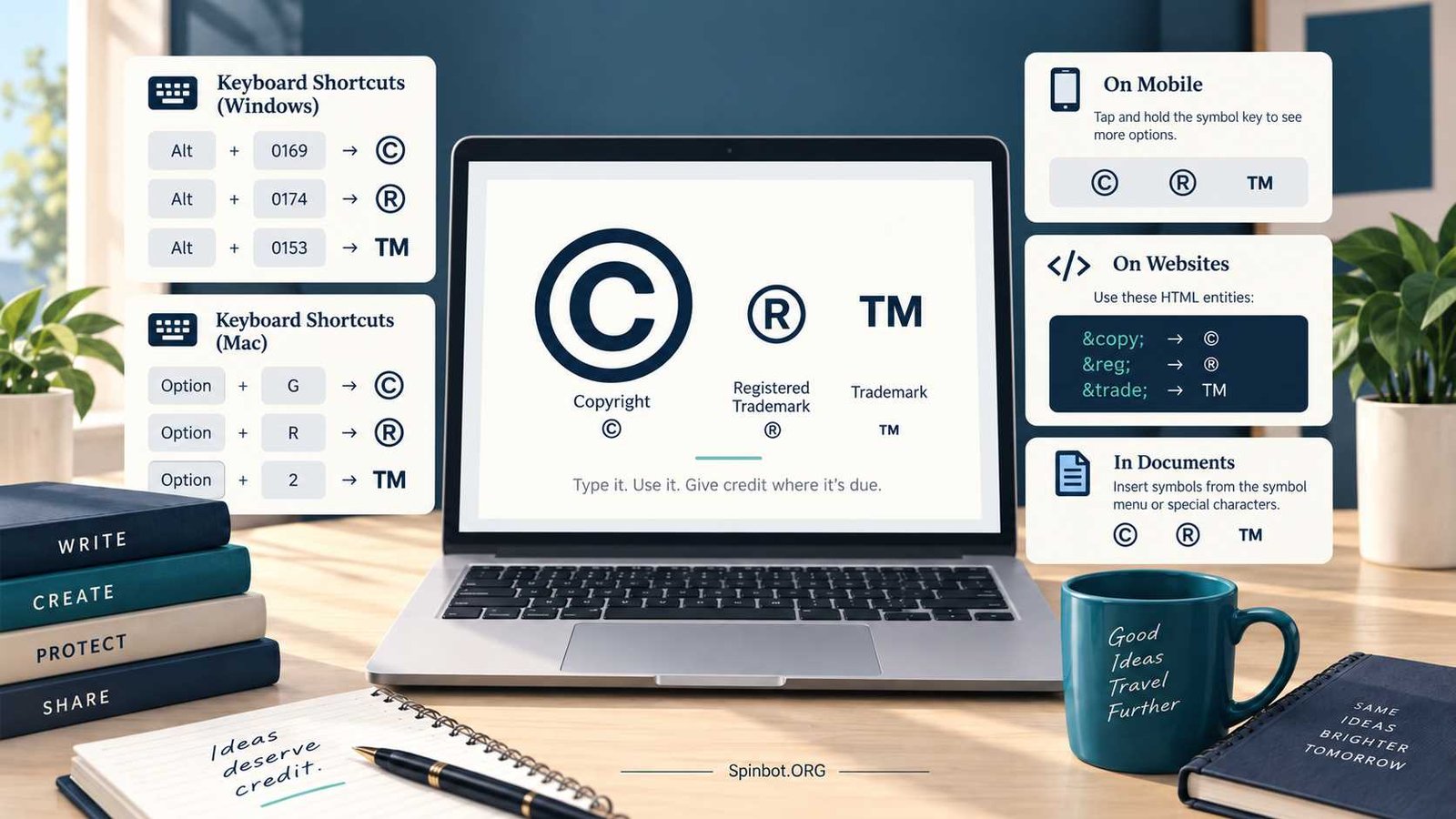
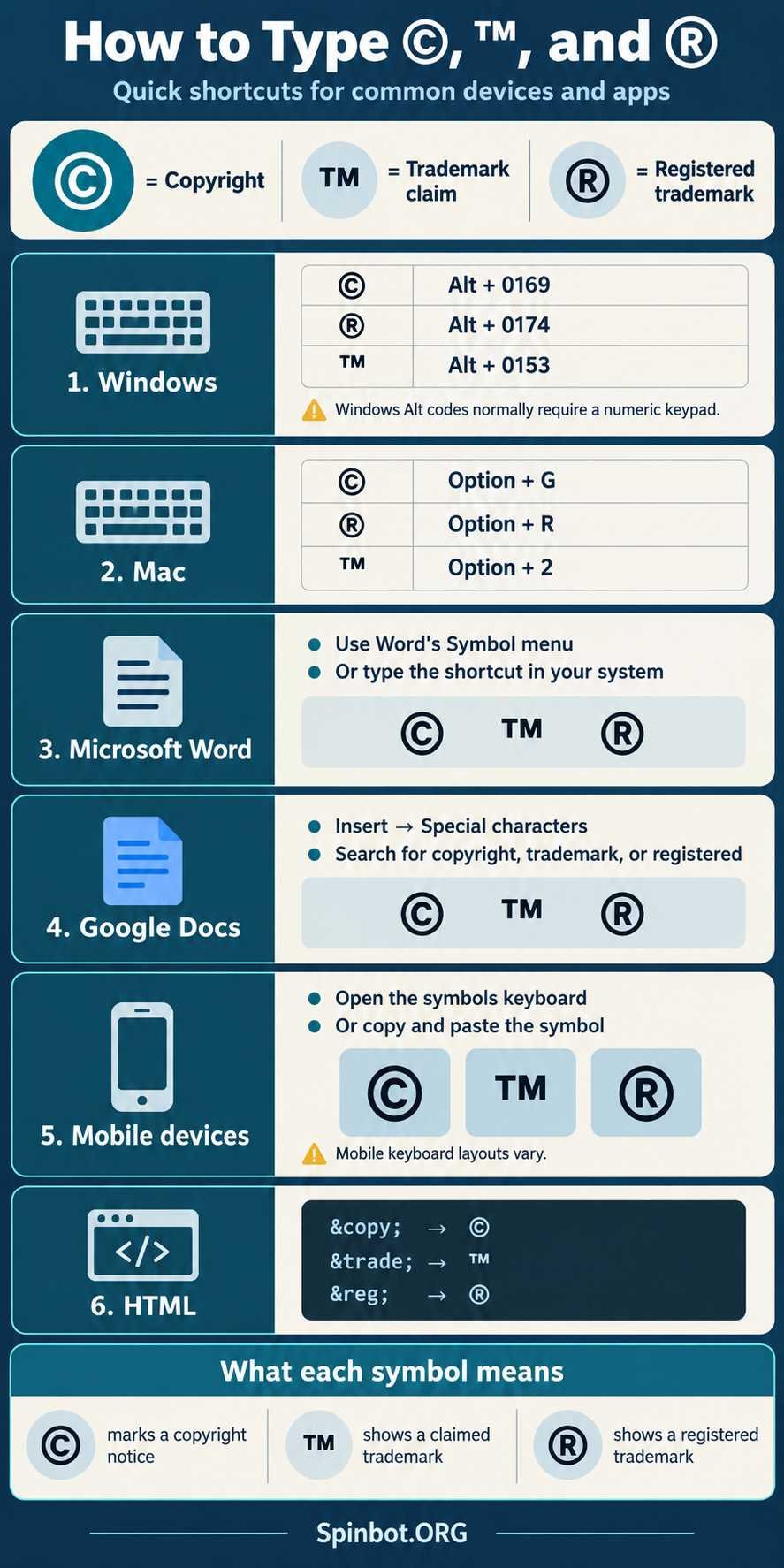
On a Windows computer, the traditional shortcut is Alt + 0169 using the numeric keypad. On a Mac with a standard U.S. keyboard layout, press Option + G. Microsoft Word also has its own shortcut, Alt + Ctrl + C. If none of those methods suits your device, copying and pasting © works almost anywhere.
The method changes slightly depending on whether you are working in Windows, macOS, Microsoft Word, Google Docs, a phone, or a website. It also helps to know that ©, ™, and ® are three different symbols with different meanings.
The Fastest Ways to Insert the Copyright Symbol
Here is the quick reference version:
| Where you are typing | How to insert © |
|---|---|
| Windows with numeric keypad | Hold Alt and type 0169 |
| Windows without numeric keypad | Press Windows + . and open Symbols |
| Microsoft Word | Press Alt + Ctrl + C |
| Mac | Press Option + G on common U.S. layouts |
| Google Docs | Insert → Special characters |
| iPhone or Android | Use your keyboard’s symbols or copy and paste © |
| HTML | Use © or © |
| Anywhere copy-paste works | Copy © from this page |
Microsoft confirms that Windows Alt codes must be entered on the numeric keypad, not the number row above the letters. That small detail explains why many people try Alt + 0169 and get nothing.
How to Insert © on Windows
Use Alt + 0169 with a Numeric Keypad
On a Windows PC with a separate number pad:
- Click where you want the symbol.
- Hold down the Alt key.
- Type 0169 on the numeric keypad.
- Release Alt.
You should see:
©
Microsoft lists Alt + 0169 as the Windows code for the copyright symbol. The same system uses Alt + 0174 for ® and Alt + 0153 for ™.
If the shortcut does not work, check whether you are entering the numbers from the dedicated number pad. Using the 0, 1, 6, and 9 keys above the letter keys will not produce the symbol with this method. On some keyboards, you may also need to make sure the numeric keypad is active.
What If Your Laptop Has No Numeric Keypad?
Many laptops do not have a separate number block. In that case, there is little reason to struggle with Alt codes.
A simpler Windows method is:
- Press Windows key + . (period).
- Select the Symbols section.
- Find and click ©.
Microsoft includes this symbol picker as a standard way to enter special characters in Windows.
You can also search Windows for Character Map. Character Map lets you select a symbol, copy it, and paste it into another program. Microsoft still documents Character Map as an option for inserting characters that are not easy to type directly.
For an occasional copyright notice, however, copying © is usually faster than opening another utility.
How to Type the Copyright Symbol on Mac
On a Mac using a common U.S. keyboard layout, press:
Option + G
That produces:
©
The related shortcuts are commonly:
- Option + 2 for ™
- Option + R for ®
- Option + G for ©
Keyboard layouts can differ by language and region, so an Option shortcut that works on a U.S. layout may produce something else on another layout.
When that happens, use macOS Character Viewer rather than guessing.
Apple’s current instructions let you open Character Viewer through Edit → Emoji & Symbols or the appropriate Emoji and Symbols keyboard command for your Mac settings. You can then search for a symbol and insert it directly.
This is especially useful when you need less familiar characters and do not want to memorize dozens of shortcuts.
Insert © in Microsoft Word
Word gives you several good choices, so use whichever is easiest to remember.
Use the Word Shortcut
Microsoft documents this shortcut for the copyright symbol:
Alt + Ctrl + C
Place your cursor where you want © and press those keys together.
On Windows, you can also use Alt + 0169 with the numeric keypad because that is a Windows character code rather than a Word-only shortcut.
Those two methods are easy to confuse:
Alt + Ctrl + C is a Word shortcut.
Alt + 0169 is the Windows Alt-code method and requires the numeric keypad.
Use Word’s Symbol Menu
If you would rather not memorize anything:
- Put your cursor where © should appear.
- Open Insert.
- Choose Symbol.
- Choose More Symbols if needed.
- Select ©.
- Click Insert.
Microsoft recommends the Symbol menu for characters that are not readily available on your keyboard.
This approach is also useful when you need several unusual characters at once.
Add © in Google Docs
Google Docs has its own special-character browser on desktop.
Open your document and choose:
Insert → Symbols → Special characters
Depending on the current Docs interface, the menu may display the symbol option slightly differently, but Google’s help documentation confirms that Docs and Slides allow special characters to be inserted from the Insert menu. You can browse categories, enter a Unicode value, or even draw the character you are trying to find.
Search for copyright, select ©, and it will be added where your cursor is positioned.
There is one useful limitation to know: Google’s special-character insertion tool is a desktop feature. Google’s mobile help directs users to a computer for inserting special characters through the Docs interface. On a phone or tablet, your device keyboard or copy and paste is generally the easier route.
Type © on iPhone and Android
Mobile keyboards vary more than desktop keyboards. A symbol that appears immediately on one Android keyboard may sit behind another menu on a different phone.
Start by opening the numbers or symbols section of your keyboard and look for ©.
If you cannot find it, simply copy this:
©
Then paste it into your email, social post, document, website editor, or notes app.
If you use © regularly, consider creating a text-replacement shortcut in your phone’s keyboard settings. For example, you could make a short sequence such as cpy expand into ©. Choose a trigger you would not normally type as part of another word.
Copy and paste may sound unsophisticated, but for a symbol you use twice a year, it is often more sensible than memorizing a device-specific trick.
How to Insert a Copyright Symbol in HTML
For a modern webpage, you can place the actual Unicode character directly in the HTML:
©
You can also use the named HTML character reference:
©
Or the decimal character reference:
©
All represent the copyright character. MDN identifies the copyright symbol as Unicode U+00A9 and lists © as its named HTML character reference.
For example:
<p>© 2026 Example Company</p>
A browser renders that as:
© 2026 Example Company
The related HTML references are:
- © →
© - ® →
® - ™ →
™
These are useful when you are editing HTML source rather than writing in a normal visual editor.
Copyright vs Trademark vs Registered Trademark Symbols
The symbols look related, but they are not interchangeable.
| Symbol | Name | Common purpose | Windows Alt code |
|---|---|---|---|
| © | Copyright | Copyright notice | Alt + 0169 |
| ™ | Trademark | Claiming a trademark | Alt + 0153 |
| ® | Registered trademark | Federally registered trademark in the U.S. | Alt + 0174 |
Microsoft confirms the three Windows codes.
The legal distinction matters more than the keyboard shortcut.
© Means Copyright
The © copyright symbol is associated with copyright-protected creative works such as writing, photographs, illustrations, software, and other forms of authorship.
A traditional U.S. copyright notice for a visually perceptible work contains three elements:
© + year of first publication + copyright owner’s name
For example:
© 2026 Example Publishing
The U.S. Copyright Office explains that a copyright notice is generally optional for works published on or after March 1, 1989, although using one can still provide legal benefits. You do not need to register a work merely to place a copyright notice on it.
So if you were wondering how to make a copyright symbol because you want to add one to a website footer, document, photograph, or publication, © is the symbol you are looking for.
™ Means Trademark
The ™ symbol indicates that someone is claiming a word, name, logo, or other designation as a trademark.
In the United States, the USPTO explains that ™ can be used for goods even when you have not filed an application to federally register the trademark. A related SM designation can be used for services.
If you are simply asking how do you make the TM symbol, here are the common shortcuts:
Windows: Alt + 0153 using the numeric keypad
Mac: Option + 2 on common U.S. layouts
HTML: ™
® Is the R-in-a-Circle Symbol
The R in circle symbol, ®, means registered trademark.
In the United States, this is not simply a fancier version of ™. The USPTO says ® should be used after the trademark has been federally registered, and only in connection with the goods or services covered by that registration.
To insert the registered trademark symbol:
Windows: Alt + 0174 using the numeric keypad
Mac: Option + R on common U.S. layouts
HTML: ®
Do not use ® merely because you own a business name, domain name, or logo. Trademark registration is a separate legal status.
Why the Copyright Shortcut Sometimes Does Not Work
When © refuses to appear, the symbol itself is rarely the problem. Usually the input method does not match the device or application.
On Windows, the most common mistake is entering Alt + 0169 with the number row above the letters. Microsoft specifically says Windows Alt codes require the numeric keypad.
A laptop without a numeric keypad therefore calls for another method, such as Windows + period, Character Map, Word’s Symbol menu, or simple copy and paste.
On a Mac, check your keyboard input source. Apple provides Keyboard Viewer specifically so you can see which characters different keys produce under your current keyboard layout.
In Google Docs on mobile, you may be looking for a desktop menu that simply is not offered there. Use the phone’s keyboard or paste © instead.
And if a symbol appears as an empty square or unusual box, the font may not contain a suitable glyph. Switching to a modern, widely supported font often fixes that display problem.
Keep the Shortcut You Actually Need
You do not need to remember every method.
For Windows, remember Alt + 0169 if you have a numeric keypad. Otherwise, Windows + . is easier.
For Mac, Option + G is the quick route on common U.S. keyboard layouts.
For Microsoft Word, Alt + Ctrl + C is worth remembering.
For Google Docs, use Insert → Special characters.
For websites, use the actual © character or ©.
And when you only need the symbol once, there is nothing wrong with taking the shortest route:
©
The main thing is to choose the correct mark. Use © for copyright, ™ for a trademark claim, and ® only when the trademark’s registration status allows it.

Academic editor turned AI copy pro, Sarah-Jane fuses research precision with smart storytelling. She covers academic writing, research, citation, plagiarism, copyright, grammar, editing, and publishing.