

=CLAUDE().That makes Claude useful for jobs that ordinary spreadsheet formulas struggle with, such as summarizing customer comments, classifying text, extracting information, rewriting copy, and processing many rows with the same prompt.
There is one catch: Claude for Sheets uses the Anthropic API. The add-on itself is free, but API usage costs money.
Here’s how it works and when it makes sense to use it.
Can You Use Claude in Google Sheets?
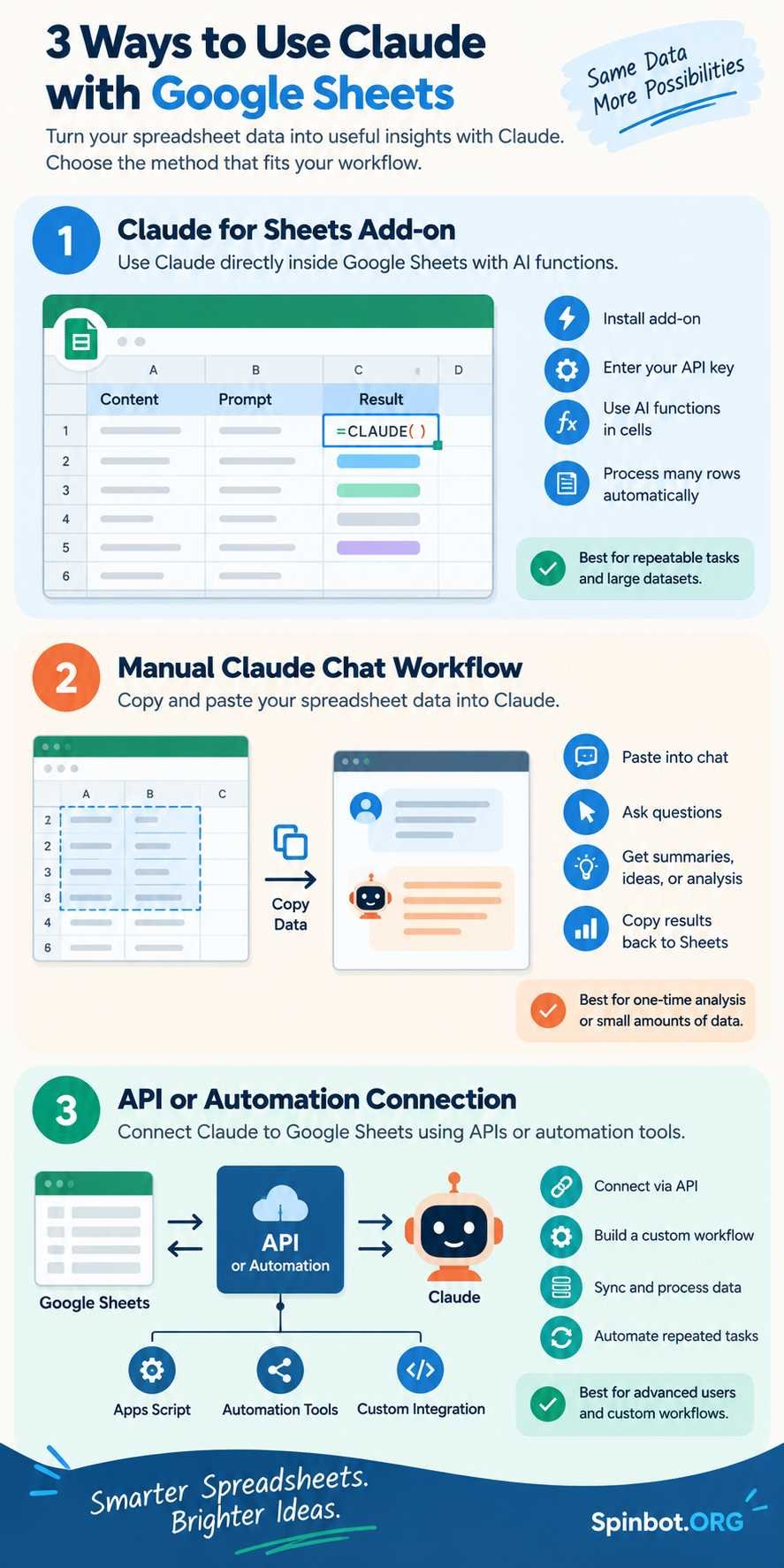
Yes. There are now several ways to use Claude with Google Sheets:
- Install the official Claude for Sheets add-on and use Claude directly in cells.
- Connect Google Drive to Claude and let Claude read spreadsheet data from Drive.
- Copy spreadsheet data into Claude manually for one-off questions.
- Build a custom workflow using the Claude API, Google Apps Script, or another automation platform.
For most people who want Claude to process rows automatically, Claude for Sheets is the most direct option.
Anthropic describes the add-on as a way to execute Claude interactions directly inside spreadsheet cells. It is especially suited to repeated text-processing tasks and prompt testing across multiple examples.
The newer Google Workspace connector is different. Anthropic’s current documentation says Claude can also read Google Sheets through Google Drive, along with Docs, Slides, PDFs, images, and Office files. That connector is useful when you want Claude to analyze a file during a conversation rather than place an AI formula in every spreadsheet row.
What Is Claude for Sheets?
Claude for Sheets is an Anthropic add-on available through the Google Workspace Marketplace.
Once installed, it adds custom spreadsheet functions including:
=CLAUDE()
and
=CLAUDEMESSAGES()
The first is the function most users need. You give Claude an instruction, optionally combine it with text from another cell, and Claude returns its answer in the spreadsheet.
For example:
=CLAUDE("Write three short product taglines for a reusable water bottle")
The cell displays a loading message while the request is processed, then replaces it with Claude’s response. Anthropic’s documentation confirms that the formula sends the request through its API.
This means you can turn a normal spreadsheet into a simple AI processing system.
How to Set Up Claude in Google Sheets
The setup has three main parts.
1. Get an Anthropic API key
Claude for Sheets does not simply use your normal Claude chat subscription.
You need access to the Anthropic API and an API key from the Anthropic Console. API usage is billed separately according to the model and number of tokens processed.
Keep that key private. An API key can authorize paid requests from your Anthropic account.
2. Install Claude for Sheets
Open the Google Workspace Marketplace and find the official Claude for Sheets add-on from Anthropic.
Install it and approve the requested Google permissions.
After installation, open the spreadsheet where you want to use Claude.
Anthropic’s setup instructions currently direct users to:
Extensions → Claude for Sheets → Open sidebar → Settings → API provider
Enter your Anthropic API key there. Anthropic also notes that you may need to refresh the spreadsheet before the Claude menu appears.
You may need to enter the key again when working with a new Google Sheet.
3. Test the CLAUDE function
Start with something small:
=CLAUDE("Explain photosynthesis in one simple sentence")
If the setup is working, Claude’s response should appear in the cell.
Once that works, the useful part begins: combining prompts with spreadsheet data.
How to Use Claude With Spreadsheet Cells
The real value of Claude for Google Sheets appears when the prompt changes according to the contents of each row.
Suppose cell A2 contains a customer review.
You could summarize it with:
=CLAUDE("Summarize this customer feedback in one sentence: " & A2)
You could classify its sentiment:
=CLAUDE("Classify this feedback as Positive, Neutral, or Negative. Return one word only: " & A2)
Or extract information:
=CLAUDE("Extract the email address from this text. Return only the email address: " & A2)
Now copy the formula down the column.
Each row sends its own content to Claude and receives a corresponding answer.
That pattern makes Claude for Sheets useful for large collections of unstructured text.
Practical Claude for Google Sheets Examples
Claude is not a replacement for normal spreadsheet formulas. You wouldn’t use an AI model to calculate SUM(A1:A10).
It becomes more useful when a task requires understanding language rather than simply calculating numbers.
Summarize survey responses
Imagine hundreds of survey comments in column A.
Instead of reading each one manually, use Claude to create a short summary in column B:
=CLAUDE("Summarize the main issue in this response in 12 words or fewer: " & A2)
Clear limits such as 12 words or fewer usually make spreadsheet outputs easier to scan.
Categorize support messages
Suppose you receive customer questions that should be assigned to Billing, Technical Support, Returns, or Other.
Use:
=CLAUDE("Classify this request as Billing, Technical Support, Returns, or Other. Return only the category: " & A2)
Restricting the allowed answers helps keep the resulting column consistent.
Clean inconsistent text
Claude can also standardize messy text.
For example:
=CLAUDE("Rewrite this job title in clear title case. Return only the corrected title: " & A2)
This can help when text needs interpretation rather than a simple find-and-replace rule.
Create descriptions from structured data
If columns A, B, and C contain a product name, feature, and target user, you can combine them:
=CLAUDE("Write a factual two-sentence product description using this information only: " & A2 & ", " & B2 & ", " & C2)
The phrase using this information only is useful when you do not want Claude filling gaps with assumptions.
Still, AI output should be checked before publication or business use.
Using CLAUDEMESSAGES for More Advanced Prompts
Claude for Sheets also includes =CLAUDEMESSAGES().
This function lets you structure a request as a sequence of user and assistant messages. Anthropic says it can be useful for simulating multi-turn conversations or guiding the form of Claude’s response.
A simple structure looks like:
=CLAUDEMESSAGES("User: Give me a short headline for a gardening article.
Assistant:")
Anthropic’s documentation also supports parameters including max_tokens, temperature, system, and stop_sequences.
There is an important detail: when you use optional parameters, the model argument must come before them. Model IDs change over time, so use a currently supported model ID from Anthropic’s API documentation rather than copying an old model name from an outdated tutorial.
For ordinary spreadsheet work, you probably will not need these advanced controls at first.
Start with a precise =CLAUDE() prompt.
How Much Does Claude for Sheets Cost?
The Claude for Sheets add-on itself is free, according to its Google Workspace Marketplace listing.
The AI requests are not free. They use your Anthropic API account and are billed according to API usage.
Anthropic charges according to the model and the amount of input and output processed.
As of September 2026, for example, Anthropic lists:
| Model | Base input per million tokens | Output per million tokens |
|---|---|---|
| Claude Haiku 4.5 | $1 | $5 |
| Claude Sonnet 5 | $2 | $10 |
| Claude Opus 5 | $5 | $25 |
Prices can change, so check Anthropic’s current API pricing before building a large spreadsheet workflow.
For a sheet containing only a few short prompts, the cost may be small. But hundreds or thousands of cells can create many API requests.
Here’s what matters: a paid Claude chat subscription and Claude API billing are separate things. Having access to Claude through a consumer subscription does not automatically make unlimited Claude for Sheets calls free.
Watch spreadsheet recalculation
Google Sheets sometimes recalculates formulas after edits.
Anthropic’s Marketplace listing says Claude for Sheets uses caching to reduce repeat API calls. It also provides throttling controls and recalculation tools when many Claude cells are running at once.
If you’re processing a large dataset, test your workflow on 10 or 20 rows before filling a formula through 10,000 rows.
That small test can catch a bad prompt before it becomes an expensive one.
Claude for Sheets vs Gemini in Google Sheets
Claude is no longer the only serious AI option inside Sheets.
Google has expanded Gemini deeply into Google Sheets. Current Google documentation says Gemini can create tables and formulas, analyze data, build charts, work with Drive and Gmail information, perform spreadsheet actions, and use AI functions such as =AI() or =Gemini().
So which should you use?
| Need | Claude for Sheets | Gemini in Sheets |
|---|---|---|
| Process text with Claude models | Strong fit | No |
| AI formula inside cells | Yes | Yes |
| Uses Anthropic API key | Yes | No |
| Native Google integration | Add-on | Yes |
| Create formulas and spreadsheet actions | Mainly through generated text | Strong native support |
| Summarize or classify text | Yes | Yes |
| Google Search information from AI function | Not a core Sheets feature | Supported |
| Cost model | API usage | Depends on eligible Google plan |
Gemini has the advantage of being built directly into Google’s spreadsheet environment.
Claude makes more sense when you specifically want Claude’s models, want to run repeatable prompts through cells, or already use the Anthropic API elsewhere in your workflow.
There is no need to declare one universally better. The better choice depends on what you are processing and which AI ecosystem you already use.
Claude’s Google Drive Connector Is Another Option
You don’t always need an AI formula.
Anthropic’s current Google Workspace connector can access Google Drive content, including Sheets. That means you can ask Claude to inspect spreadsheet data while you are chatting with it.
Think of the difference this way:
Claude for Sheets is useful when you want:
- an AI result in individual cells
- the same prompt repeated across rows
- spreadsheet-based prompt testing
- text classification or extraction at scale
Claude’s Google Drive connector is better when you want:
- to discuss a spreadsheet with Claude
- a broader analysis of a file
- answers without building formulas
- to work across multiple Drive files during a conversation
For a one-time question, even copying a small table into Claude may be simpler than installing anything.
Use the lightest tool that solves the job.
Privacy and Sharing Need Extra Attention
Claude formulas can contain customer comments, employee notes, unpublished content, research data, or other private information.
Treat that data carefully.
The Marketplace listing states that information passed through =CLAUDE... functions is sent to Anthropic. It also warns that people who receive a Claude-enabled spreadsheet may be able to use its custom functions through the API key associated with that sheet, even though they cannot see the key itself. Those calls can still be billed to the API account owner.
Before sharing a workbook:
- remove information Claude does not need
- avoid placing an API key directly inside a cell formula
- check who has access to the spreadsheet
- understand your organization’s data rules
- verify AI-generated results before using them for important decisions
Do not assume a spreadsheet becomes harmless simply because access is limited to coworkers.
Common Claude for Sheets Problems
Unknown function: CLAUDE
If Google Sheets displays an unknown-function error, first confirm that the add-on is installed for the account opening the spreadsheet.
Refresh the page and check the Extensions menu. Anthropic includes this error in its official troubleshooting guidance.
DEFERRED or THROTTLED
A large sheet can send many requests quickly.
Anthropic says its add-on may display deferred or throttled states when API concurrency limits are reached. The Claude for Sheets menu includes recalculation tools, while its throttling setting can slow requests to make large sheets easier to control.
Avoid filling thousands of Claude formulas all at once unless you understand the cost and rate limits.
Claude gives inconsistent categories
This is usually a prompt-design problem rather than a spreadsheet problem.
Instead of:
=CLAUDE("What type of message is this? " & A2)
try:
=CLAUDE("Classify this message as Sales, Support, Billing, or Other. Return exactly one category and nothing else: " & A2)
Defined choices create cleaner spreadsheet data.
The answer looks convincing but is wrong
That can happen with any generative AI system.
Use Claude for interpretation, drafting, classification, and assistance, not as an unquestioned source of truth. Anthropic itself advises users to double-check outputs.
When Claude in Google Sheets Makes Sense
Claude for Google Sheets works best when your spreadsheet contains language-heavy data.
Think reviews, survey answers, descriptions, notes, support requests, titles, research snippets, or content inventories.
The basic workflow is simple:
Put data in one column → give Claude a precise instruction → return structured output in another column → review the result.
For calculations, lookups, totals, dates, and other deterministic work, standard spreadsheet formulas are usually faster, cheaper, and more reliable.
For text that needs judgment or interpretation, Claude can add a useful layer that ordinary formulas cannot provide.
Start with one small task. Write a prompt that produces a predictable answer. Test it on several different rows. Only then copy the formula through the rest of your dataset.
That approach gives you the real benefit of Claude in Google Sheets: not AI for its own sake, but a practical way to turn repetitive language work into a repeatable spreadsheet workflow.

Covers AI writing tools, large language models, prompt engineering, AI detection, and practical AI writing workflows for Spinbot.ORG.