There is one catch: Instagram’s own mobile app does not currently offer the same native Story scheduling option it provides for feed posts and Reels. Instagram’s official scheduling instructions cover photos, carousel posts, and Reels for professional accounts, but not Stories.
That means you need Meta Business Suite or a compatible scheduling tool if you want to prepare Stories ahead of time.
The right method depends on something else, too. A simple photo or video Story can often publish automatically. But if you want music, polls, stickers, links, effects, or other Instagram-only features, you may need notification publishing instead.
Here’s how each method works.
Can You Schedule an Instagram Story Directly in Instagram?
Not in the same way you can schedule a regular Instagram post or Reel.
Instagram allows professional accounts to schedule posts and Reels from the mobile app. Its current help documentation says businesses and creators can schedule photos, carousel posts, and Reels ahead of time. Stories are not included in those instructions.
So if you open the Instagram Story creator and cannot find a Schedule button, you are probably not overlooking a hidden setting.
Instead, you have three practical choices:
- Schedule the Story through Meta Business Suite.
- Use a third-party scheduler that can automatically publish Stories.
- Use notification publishing, where a scheduling tool reminds you at the right time and you complete the Story inside Instagram.
For most small businesses and individual creators, Meta Business Suite is the best place to start because it is free.
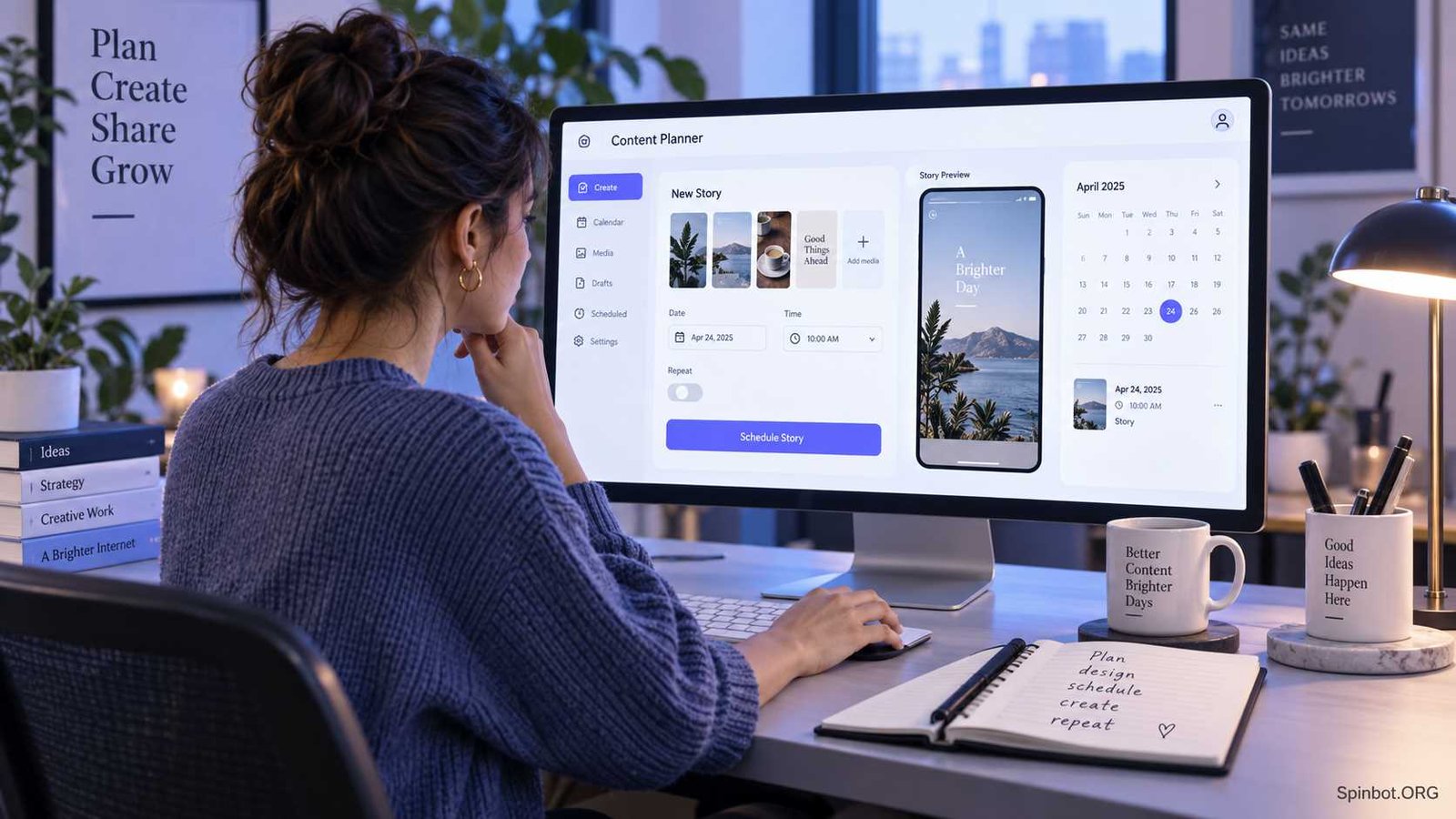
How to Schedule an Instagram Story With Meta Business Suite
Meta Business Suite lets you manage Facebook and Instagram content from one dashboard. Current scheduling guides from Buffer and Sprout Social both document Story scheduling through Business Suite.
The exact buttons may change as Meta updates its interface, but the basic process is straightforward.
1. Open Meta Business Suite
Sign in to Meta Business Suite on your computer.
Make sure you are managing the correct Facebook Page and connected Instagram account before creating the Story. If you manage several brands, double-check the selected account before scheduling anything.
2. Choose Create Story
Open the Content or Planner area and select Create story.
You should then be able to choose where the Story will appear. Select your Instagram account. You may also choose the associated Facebook Page if you want the same Story to appear on both platforms.
3. Upload Your Story Content
Add the image or video that you want to publish.
Sprout Social currently says Meta Business Suite can handle up to 10 images and videos when preparing a Story sequence. It also provides a preview so you can review the content before scheduling it.
For the cleanest result, design your Story for a vertical phone screen. A 9:16 layout is normally the safest choice because it uses the available Story space well.
Keep important text and visual elements away from the extreme top and bottom edges. Instagram adds interface elements in these areas when the Story appears on a phone.
4. Select a Publishing Time
Instead of choosing the option to publish immediately, select Schedule.
Choose the date and time when you want the Story to appear.
Sprout Social’s current Business Suite instructions also describe an Active times option that may suggest times when your audience is active.
Suggested times can be useful, but they are not a guarantee of higher views. Your own audience habits and the purpose of the Story matter more.
For example, a restaurant promoting a lunch offer needs a different schedule from a software company announcing a webinar.
5. Review and Schedule
Preview the Story before confirming it.
Check the account, media, publishing date, and time. Then click Schedule.
The Story should appear in your Meta Business Suite content calendar or scheduled-content area. Check the calendar after scheduling so you know the item was saved correctly.
That simple check can prevent the painful discovery that tomorrow morning’s promotion was sitting in Drafts instead of Scheduled.
Can Instagram Stories Publish Automatically?
Yes, but automatic publishing depends on the tool, account type, media, and features included in the Story.
Automatic publishing means you create the Story today, choose a future time, and the scheduling platform publishes it without requiring you to touch your phone.
That is ideal for simple Stories such as:
product photos, event reminders, announcements, quotes, blog promotions, sale notices, opening-hour reminders, and pre-made videos.
The problems usually begin when you want Instagram-native creative tools.
Music, polls, interactive stickers, effects, links, tags, and similar features may not be available through every scheduler’s automatic publishing system.
This is why it helps to understand the difference between automatic publishing and notification publishing.
Automatic Publishing vs Notification Publishing
These two terms sound similar, but the difference matters.
| Feature | Automatic Publishing | Notification Publishing |
|---|---|---|
| Story prepared in advance | Yes | Yes |
| Story publishes by itself | Yes | No |
| Phone needed at publishing time | Usually no | Yes |
| Instagram app opened manually | No | Yes |
| Best for simple photos and videos | Yes | Yes |
| Useful for Instagram-native features | Limited | Yes |
| Good for fully automated campaigns | Yes | No |
With notification publishing, your scheduler does not actually finish the post.
Instead, it sends a notification to your phone at the scheduled time. You tap the notification, open Instagram, make any final changes, and publish the Story yourself.
That sounds less convenient, but it gives you much more creative control.

When Notification Publishing Is the Better Choice
Suppose you want to publish a product Story at 7 p.m.
The Story needs a photo, some text, music, a poll asking followers which version they prefer, and a link.
You could prepare the media beforehand and schedule a reminder for 7 p.m. When the notification appears, you open Instagram, add the interactive elements, and publish.
You still avoid creating everything at the last minute, but you keep access to Instagram’s native Story tools.
Buffer’s current documentation says notification publishing can be used when a Story includes features that third-party automatic publishing does not support, including music, Story links, Story text, and stickers.
Later follows a similar model. Its June 2026 documentation says notification publishing should be used when you need features such as stickers, polls, music, links, effects, user tags, or location tags.
So notification publishing is not necessarily a worse version of scheduling. For interactive Stories, it may be the smarter workflow.
How to Schedule Instagram Stories With Buffer
Buffer is another option if you manage content across several social platforms or want your Instagram scheduling inside a broader content calendar.
Buffer currently supports both automatic and notification-based Instagram publishing. For eligible professional accounts and supported Story content, automatic publishing can post at the scheduled time without additional action.
A basic workflow looks like this: connect your Instagram account, create a new item, choose Instagram and Story, upload your media, select automatic or Notify Me publishing, and choose your publishing time.
If your Story contains an unsupported feature, Buffer may require notification publishing instead.
This is an important point when comparing social schedulers. Do not simply ask whether a tool can “schedule Instagram Stories.”
Ask:
Can it automatically publish the type of Story I want to create?
A tool that schedules plain images automatically may still require manual action when music, text, stickers, or links are added.
How to Schedule Instagram Stories With Later
Later also supports planning and scheduling Instagram Stories, although its current Story scheduling feature is available on paid plans.
According to Later’s June 25, 2026 documentation, Stories can currently be scheduled through Later on desktop. Its Auto Publish feature for Stories is available for Instagram business profiles, while creator profiles use notification publishing.
Later also lets you schedule multiple Story frames.
That can be useful when a Story has a clear sequence, such as:
problem → explanation → product → benefit → call to action.
You can plan the whole sequence rather than treating every Story frame as an isolated post.
Again, interactive Instagram features affect the workflow. Later says music, polls, stickers, links, effects, user tags, and location tags need to be added inside Instagram through notification publishing rather than its automatic Story publishing method.
Meta Business Suite or a Third-Party Scheduler?
If you only manage Facebook and Instagram, start with Meta Business Suite.
It costs nothing and gives you a straightforward way to prepare and schedule Instagram Stories without adding another platform to your workflow.
A third-party scheduler becomes more useful when your content operation grows.
For example, you may manage Instagram, Facebook, LinkedIn, TikTok, Pinterest, and other channels. Opening a different publishing tool for each network wastes time. A social media management platform can place more of that work inside one calendar.
The decision is less about which tool has the longest feature list and more about how you work.
A solo creator with one Instagram account may need very little.
A marketing team running five brands across several platforms may care about calendars, approvals, asset libraries, drafts, team roles, and campaign planning.
Do not pay for complexity you will never use.
What Can Go Wrong With Scheduled Stories?
Scheduling removes repetitive work, but it does not remove the need to review your content.
One common problem is assuming that every feature visible inside the Instagram app can also be published by an external scheduling tool.
That is not always true.
Later explicitly notes that several Instagram-native Story features cannot be added through its automatic publishing workflow. Buffer also switches some Stories to notification publishing when unsupported features are involved.
Media format can cause trouble as well. Later, for example, requires Story videos to be 60 seconds or shorter in its current scheduling workflow, and it sets specific aspect-ratio requirements for automatic publishing.
There is also the simplest failure of all: scheduling the wrong content for the wrong time.
A perfectly automated Story promoting a sale that ended yesterday is still a bad Story.
Before scheduling a large batch, review dates, prices, URLs, event times, product availability, and any time-sensitive claims.
How to Plan Instagram Stories Before You Schedule Them
Scheduling works best when you separate planned content from real-time content.
Planned Stories are things you already know will happen: a product launch, new blog post, webinar, holiday campaign, weekly tip, podcast episode, store promotion, or recurring reminder.
Those are good candidates for scheduling.
Real-time Stories are different. Behind-the-scenes moments, breaking news, event reactions, audience questions, quick updates, and spontaneous conversations often work better when posted naturally.
You do not need to automate every Story just because the option exists.
A stronger approach is to create a basic scheduled layer that keeps the account active, then add spontaneous Stories when something worth sharing actually happens.
This gives you consistency without making the account feel like a machine is running it.
Plan Story Sequences, Not Just Individual Slides
A single Story frame can work, but several connected frames often communicate an idea more clearly.
Imagine you are promoting a new guide.
Your first frame could introduce the problem. The second explains one useful tip. The third shows the guide. The fourth gives people a reason to read it. The final frame provides the next action.
Planning that sequence before scheduling helps every frame serve a purpose.
It also prevents the common habit of publishing five unrelated Story graphics simply because five graphics were available.
Should You Schedule Every Instagram Story?
Probably not.
Schedule content when timing and consistency matter. Post manually when interaction and immediacy matter more.
A scheduled Story makes sense for tomorrow’s product launch at 9 a.m. A spontaneous Story probably makes more sense when you are standing backstage at an event and something interesting is happening right now.
The best social workflow usually combines both.
Scheduling handles predictable work. You keep your attention available for conversations, reactions, customer questions, and moments that cannot be planned three days ahead.
The Simplest Way to Start Scheduling Instagram Stories
If you are wondering can you schedule an Instagram Story, the answer in 2026 is yes.
For a free starting point, use Meta Business Suite to create the Story, select Instagram, upload your media, choose a future time, and schedule it. Current guides from Buffer and Sprout Social both document this workflow.
If you manage several social networks, consider a scheduler such as Buffer or Later.
And if your Story depends heavily on music, polls, stickers, effects, links, tags, or other Instagram-native tools, notification publishing may be better than full automation. Prepare the Story in advance, let the scheduler remind you, then add the final interactive elements inside Instagram.
The goal is not to automate everything.
It is to schedule the predictable work so you have more time for the parts of social media that actually need a human.

Raj blends SEO mastery with real-world freelance grit. Covers SEO, blogging, content strategy, copywriting, freelance writing, marketing, and business communication.