Ever grabbed a cool photo from Google Images and thought, “It’s just one picture what’s the harm?”
Well, that “one picture” could come with a copyright claim that costs you your website, your ad revenue, or worse your peace of mind.
The good news? Checking an image for copyright is easier than you think. Whether you’re a student adding visuals to a report, a blogger designing thumbnails, or a business owner creating ads, you can verify image rights in minutes.
Let’s walk through everything you need to know from spotting copyright warnings to using free tools that tell you exactly who owns an image and whether you can use it safely.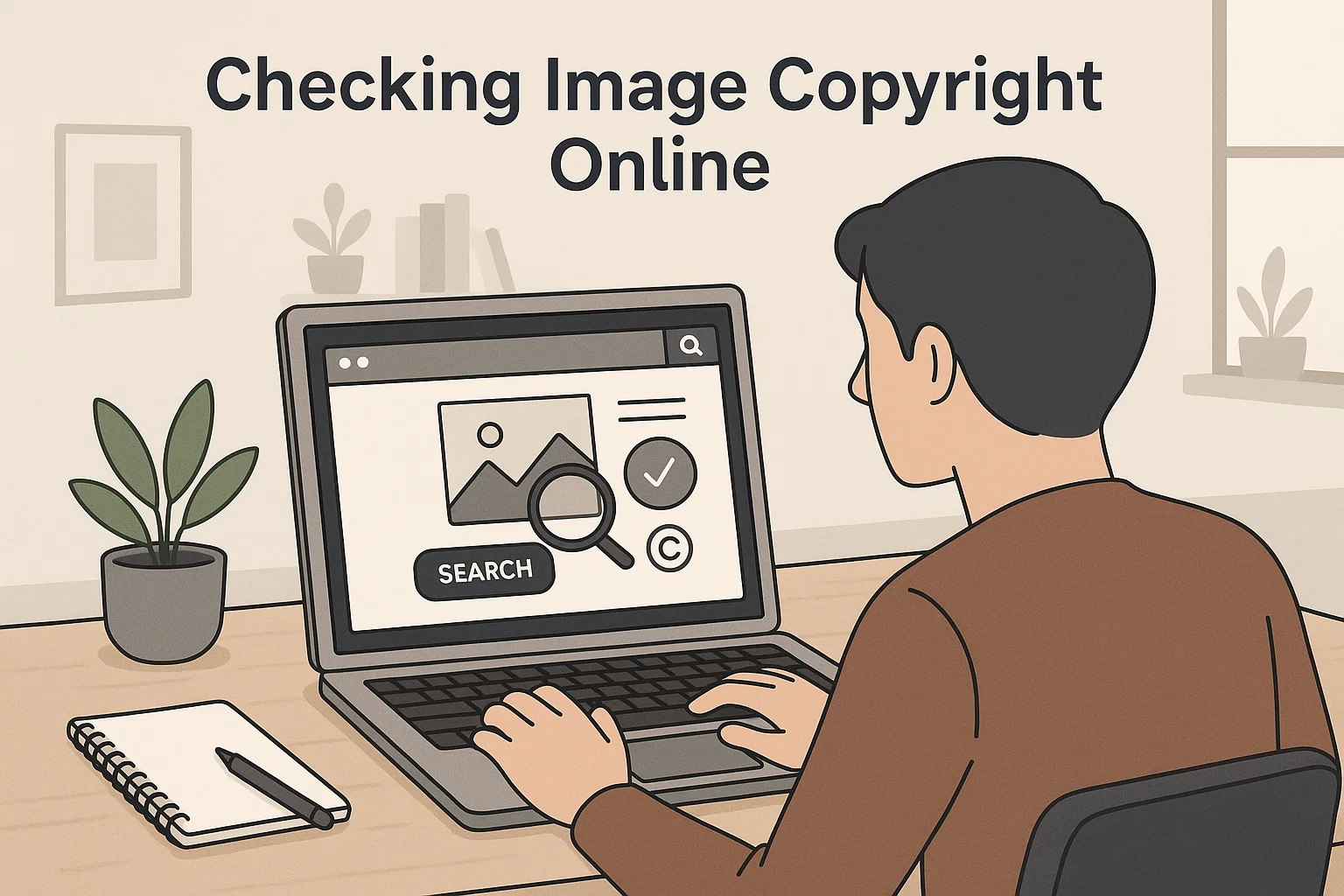
Why Checking Image Copyright Matters
Think of copyright like digital property rights. The moment someone takes a photo, paints an illustration, or designs a logo, that work becomes their property protected automatically by law.
If you use it without permission, even unknowingly, you could:
- Get a DMCA takedown notice that removes your post or video.
- Receive a cease-and-desist email from the image owner or their lawyer.
- Face fines or lawsuits for copyright infringement.
And yes, this happens every day to well-meaning creators who simply “found it online.”
But there’s a bright side. By learning how to check an image’s copyright status, you can enjoy creative freedom and peace of mind no fear of takedowns or penalties.
Quick Ways to Know If an Image Is Copyrighted
Here’s the truth: almost every photo online is copyrighted by default.
The key question isn’t “Is it copyrighted?” but “Can I use it, and under what conditions?”
To answer that, start with a quick check using the following clues:
1. Look for Watermarks or Attribution Notes
If the image has a visible logo, photographer name, or watermark, it’s likely protected.
Also check if there’s a caption or line like:
“© 2025 Jane Doe Photography” or “Photo credit: Shutterstock”
These symbols are obvious signs of copyright ownership.
2. Inspect Image Metadata (EXIF Data)
Every digital photo carries hidden data called EXIF metadata that records who created it and when.
You can reveal it using free tools like:
- metapicz.com
- Jeffrey’s Image Metadata Viewer
- exif.tools
Upload the picture, and you might see details such as:
Copyright: John Smith 2023, Camera: Canon R6, Location: Paris
If the copyright field lists a person or company, the image is not free to reuse.
3. Use Google’s Reverse Image Search
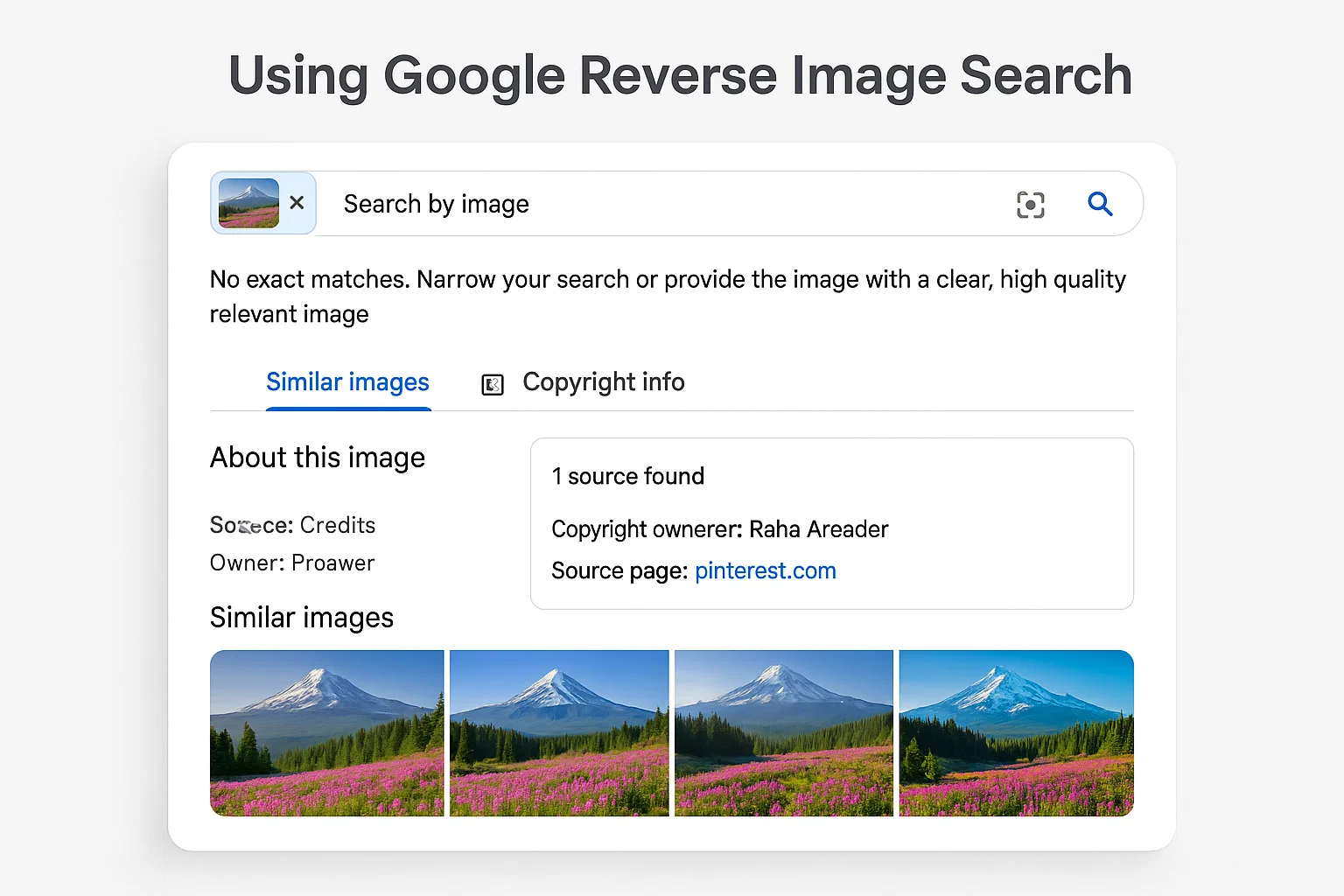
Google’s reverse image search is the fastest way to trace where an image originally came from.
How to do it:
- Go to images.google.com.
- Click the camera icon.
- Upload the picture or paste its URL.
- Google will show visually similar images and the websites where it appears.
If the same image shows up on stock sites like Getty, Adobe Stock, or Shutterstock stop. It’s protected and you’ll need to license it.
If you see it only on free-use platforms like Pixabay or Unsplash, double-check their terms but you’re likely safe.
4. Try TinEye for a Deeper Search
TinEye is a dedicated reverse image search engine known for accuracy. It not only finds where an image appears but also tracks when it was first uploaded.
That helps you identify the original creator and avoid reposts or duplicates.
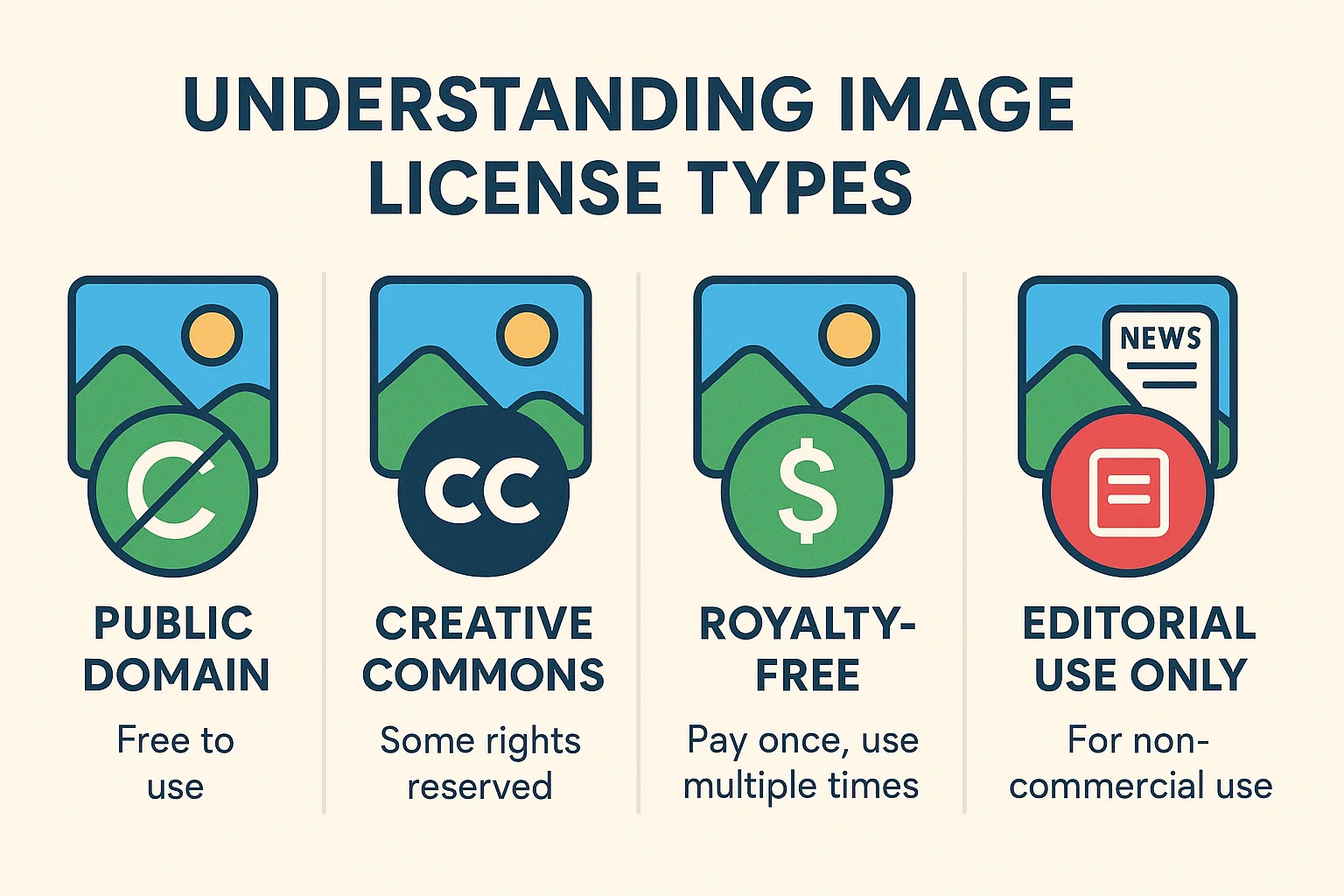
5. Check the Image License Type
Every legitimate image source lists a license a small block of text that defines how you can use the image.
Here’s what the most common ones mean:
| License Type | What It Means | Safe for Commercial Use? | Attribution Needed? |
|---|---|---|---|
| Public Domain (CC0) | Free for any use | ✅ Yes | ❌ No |
| Creative Commons BY | Free but credit required | ✅ Yes | ✅ Yes |
| Creative Commons BY-NC | Free for personal, not business use | ❌ No | ✅ Yes |
| Royalty-Free (Stock Image) | Pay once, use forever | ✅ Yes | ✅ Depends on site |
| Editorial Use Only | For news/editorial content only | ❌ No ads or products | ✅ Often |
If you’re unsure, don’t assume always look for the license note.
6. Run a Copyright or Plagiarism Scanner
Yes, there is such a thing as a copyright scanner.
Some AI-powered tools check image databases to spot duplicates or potential copyright claims.
Popular ones include:
- Pixsy – Detects where your images appear online.
- Copytrack – Finds unlicensed uses and can help you get compensation.
- Google Lens – Scans via mobile camera to find the image source instantly.
- PlagiarismCheck.org (Image Module) – Scans educational visuals for ownership flags.
These services work like antivirus for visuals handy if you regularly create content or share designs.
How to Check If Your Photo Is Being Used Without Permission
Copyright isn’t just about avoiding mistakes; it’s also about protecting your work.
Here’s how to see if someone else is using your images:
- Upload your photo to Google Images or TinEye and run a reverse search.
- Save the URLs of sites using your image.
- Check whether they credited you or linked to your page.
- If not, you can contact them politely first or file a DMCA takedown through Google or their hosting provider.
Most creators resolve it with a short message like:
“Hi, I noticed you’re using my photo from [link]. I’m happy to grant permission if you add a credit or remove it. Thanks!”
Be professional; many times, people simply didn’t know.
The Best Free and Paid Tools to Verify Image Copyright
Below is a quick toolkit you can rely on:
| Tool | Best For | Price | Link / Access |
|---|---|---|---|
| Google Images | Quick reverse search | Free | images.google.com |
| TinEye | Finding original source | Free / Paid API | tineye.com |
| Pixsy | Detecting stolen content | Free basic / Paid | pixsy.com |
| Copytrack | Claiming compensation | Free / % commission | copytrack.com |
| Creative Commons Search | Finding free-use media | Free | search.creativecommons.org |
| Unsplash / Pexels / Pixabay | Royalty-free stock photos | Free | respective websites |
| Getty Images / Adobe Stock | Commercial stock photos | Paid | gettyimages.com / stock.adobe.com |
Bookmark at least two of these. They’ll save you headaches later.
How to Safely Use Images in Your Blog or Project
Once you’ve confirmed copyright status, follow these golden rules:
- When in doubt, don’t use it.
If you can’t verify the owner or license, skip it. - Always credit creators.
Even if the license doesn’t require it, attribution builds goodwill. - Read the fine print.
Some “free” images prohibit reselling, editing, or commercial use. - Keep a license log.
Save a screenshot or download of the license for each image you use proof in case of disputes. - Use AI and stock-safe libraries.
Tools like Canva Pro, Envato Elements, and Adobe Express include pre-cleared assets. - Consider generating your own visuals.
With AI art tools (DALL·E 3, Midjourney, Firefly), you can create unique images safely. Just double-check each platform’s terms for commercial use.
Common Myths About Image Copyright
Let’s bust some myths that get creators in trouble:
- Myth 1: “If it’s on Google, it’s free.”
❌ Nope. Google indexes everything it doesn’t grant permission. - Myth 2: “I gave credit, so I’m safe.”
❌ Not necessarily. Credit doesn’t replace a license. - Myth 3: “It’s for educational use, so it’s fine.”
⚠️ Maybe, but “fair use” laws vary by country and purpose. - Myth 4: “AI-generated art can’t be copyrighted.”
⚠️ Complex area some AI works lack human authorship, but if you used copyrighted training data, legal grey zones remain.
Real-World Example: A Blogger’s Costly Mistake
Imagine Emma, a lifestyle blogger, found a perfect sunset photo for her post. She copied it from Pinterest, uploaded it to her site, and thought nothing more.
Three months later, she received a $450 invoice from a stock-photo agency plus a takedown notice.
Why? Because that “Pinterest photo” was actually owned by Getty Images.
Had she done a reverse image search, she would’ve seen it listed on Getty’s catalog and chosen a free alternative instead. Lesson learned: a 30-second check saves hundreds of dollars.
Ethical Use vs. Legal Use: The Grey Zone Explained
Sometimes you might not violate the law, but still cross ethical lines like using an artist’s image in an AI model without credit.
Ask yourself three simple questions before using any image:
- Do I have permission (explicit or via license)?
- Does my use respect the creator’s intent?
- Would I be okay if someone did the same to my work?
If you can answer “yes” to all three, you’re probably on safe ground.
Bonus: Where to Find Truly Free-to-Use Images
Here are reliable libraries that publish photos under Creative Commons CC0 or similar open licenses:
- Unsplash – Gorgeous, high-resolution photos free for any use.
- Pexels – Modern, people-focused images ideal for blogs and ads.
- Pixabay – Huge variety including illustrations and videos.
- Freepik – Vectors and mockups (credit often required).
- Flickr Commons – Historical archives and public-domain photos.
- Wikimedia Commons – Perfect for educational or historical projects.
Each platform still asks that you avoid reselling or redistributing images as standalone files but they’re safe for web and design use.
How AI Is Changing Image Copyright Checking
Artificial intelligence now plays both sides of the copyright conversation.
AI models can detect plagiarism faster than humans and generate unique content at scale.
Modern systems like Google Lens, TinEye AI Vision, and Pixsy Deep Match use neural networks to scan billions of images, even when they’re cropped, filtered, or resized.
At the same time, creators now face a new frontier: AI-generated visuals might look original but still contain patterns or data from copyrighted sources.
This is why platforms like Adobe Firefly promise “commercially safe” AI art trained only on licensed material.
Bottom line: use AI tools responsibly, read their data policies, and stay aware of how generative content fits into copyright law.
What To Do If You Accidentally Used a Copyrighted Image
Don’t panic. Mistakes happen. Here’s how to fix it quickly and professionally:
- Remove the image immediately from your website or post.
- Replace it with a licensed or public-domain alternative.
- Apologize and reach out to the original creator if identified.
- Keep a record of your corrective steps (screenshots, dates).
- Learn from it build an image-checking habit before publishing.
Most owners appreciate honesty and cooperation more than confrontation.
Key Takeaways You Should Remember
- Every photo online is copyrighted by default.
- Reverse image search is your best friend.
- Read and save image licenses before using visuals.
- Give credit even when optional it builds trust.
- Use reputable sources or create your own images.
- Stay updated: copyright laws evolve with AI every year.
Safe content isn’t just about avoiding lawsuits it’s about respecting the creative ecosystem that makes the internet beautiful.
Final Thoughts
If you create, post, or publish anything online, you’re part of a global community of creators.
Checking image copyright isn’t a chore it’s a mark of professionalism.
The next time you find a perfect image, take a minute to verify it.
That simple habit can protect your brand, your income, and your credibility.
And if you ever doubt whether an image is safe to use, remember what I tell every new writer I coach:
“When in doubt, make your own or find one that’s truly free.”
Because the best content is not just original it’s ethical, too.

Covers AI writing tools, large language models, prompt engineering, AI detection, and practical AI writing workflows for Spinbot.ORG.