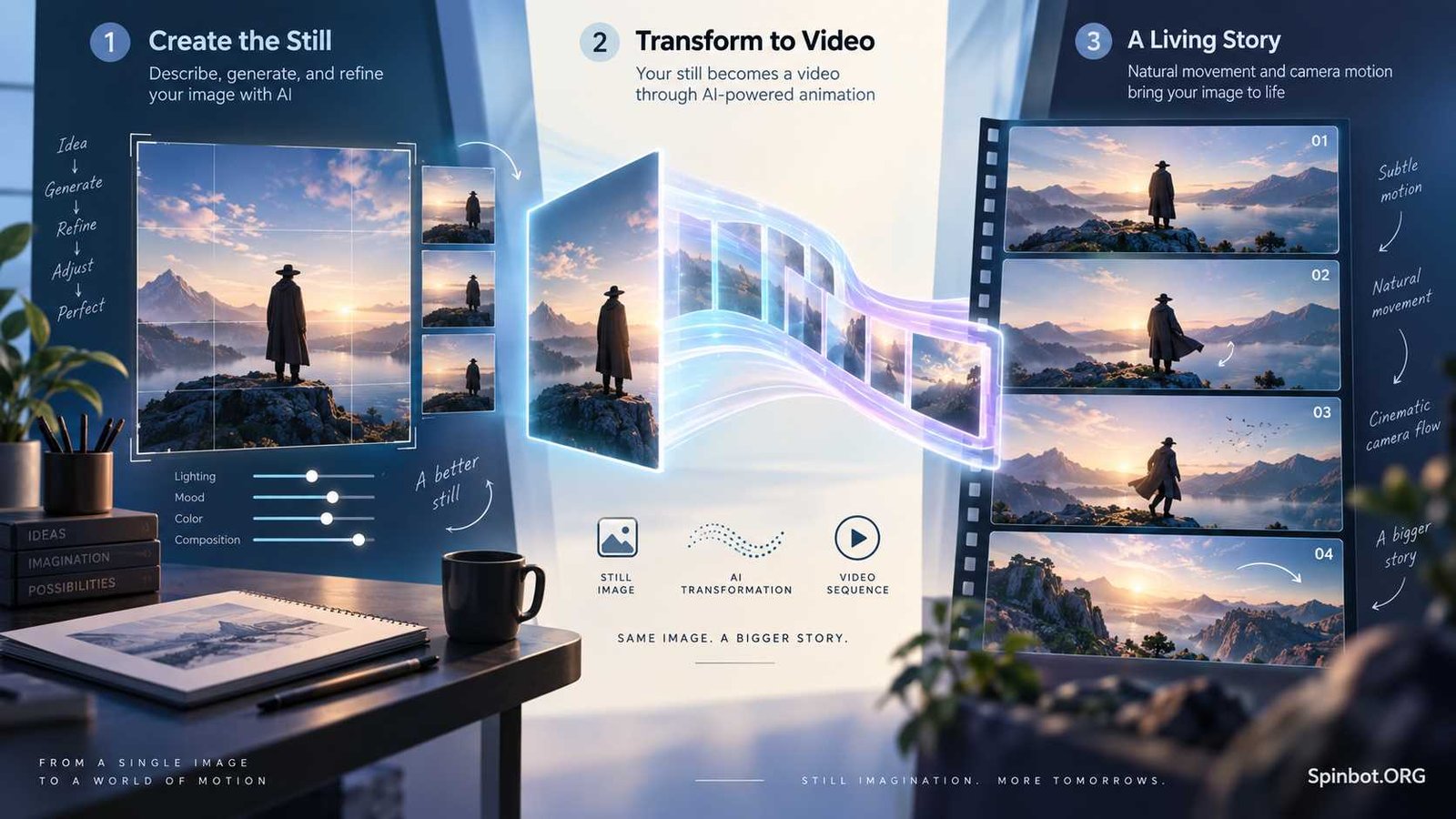
For Nano Banana video generation, you normally create or refine a still image first, then pass that image to a video model. Google’s current tools give you several ways to do this. You can use Veo 3.1 when you want detailed image-to-video control, Google Flow for a more visual filmmaking workflow, or Gemini Omni when you want to generate and edit video conversationally inside Gemini Apps.
Google’s own developer documentation even demonstrates this exact process: generate the starting image with Nano Banana 2, then use that image as the first frame for a Veo 3.1 video.
That distinction makes the whole workflow much easier to understand.
Does Nano Banana Generate Videos?
Not directly in the same way that Veo or Gemini Omni does.
Nano Banana is Google’s image-generation and image-editing technology. The current Nano Banana 2 model is listed as gemini-3.1-flash-image, while Nano Banana Pro uses gemini-3-pro-image. Google lists Veo 3.1 separately as a video-generation model and Gemini Omni Flash as a conversational video-generation and editing model.
Think of the process like this:
Nano Banana creates the frame → Veo or Omni creates the motion.
This is why searches for terms such as Nano Banana image animation often lead to tutorials that use more than one AI model.
For example, you could ask Nano Banana to create a cinematic image of a coffee cup beside a rainy window. Once the still image looks right, you could give it to Veo and ask for raindrops to move down the glass while the camera slowly pushes toward the cup.
Nano Banana controls what the scene looks like. The video model controls what happens next.
How Nano Banana, Gemini, Veo, and Flow Fit Together
Google now has several generative media tools with overlapping features. Their names can make the workflow sound more complicated than it really is.
Nano Banana creates and edits images
Nano Banana is useful when you need to:
- generate the first frame of a video
- change a character’s clothing or environment
- create product images
- adjust composition
- create alternate start and end frames
- develop a consistent visual style
Nano Banana 2 is currently Google’s production-focused image model, while Nano Banana Pro is aimed at more demanding visual creation.
If your source image is weak, the video model has less useful material to work with. So spending time on the starting frame often improves the final animation.
Veo 3.1 handles controlled video generation
Veo 3.1 is Google’s cinematic video-generation family.
It supports text-to-video and image-to-video generation, and Google currently documents features including portrait and landscape formats, native audio, first-and-last-frame control, reference images, and video extension.
This makes Veo particularly useful when you already know how your video should begin.
Instead of writing:
Make a video of a woman walking through a market.
You could first create the exact market scene and character appearance with Nano Banana. Then Veo only has to solve the motion.
That can give you more creative control.
Gemini Omni offers a simpler conversational route
There is another important change to know about.
Older tutorials may use the phrase Gemini Veo video generation because Veo powered much of Google’s earlier Gemini video workflow. Google’s current Gemini Apps documentation, however, describes Gemini Omni as its latest video-generation model.
Gemini Omni can work with text, images, and video, and it supports continued video editing through conversation. Google says users can add one video and up to five images when creating a video in Gemini Apps.
So if you simply want to upload an image and say, “Animate this scene,” Gemini may now be the easiest route.
Veo still matters when you need its more specific cinematic controls or when you’re working through Flow or the Gemini API.
Nano Banana to Veo Workflow: Image to Video Step by Step
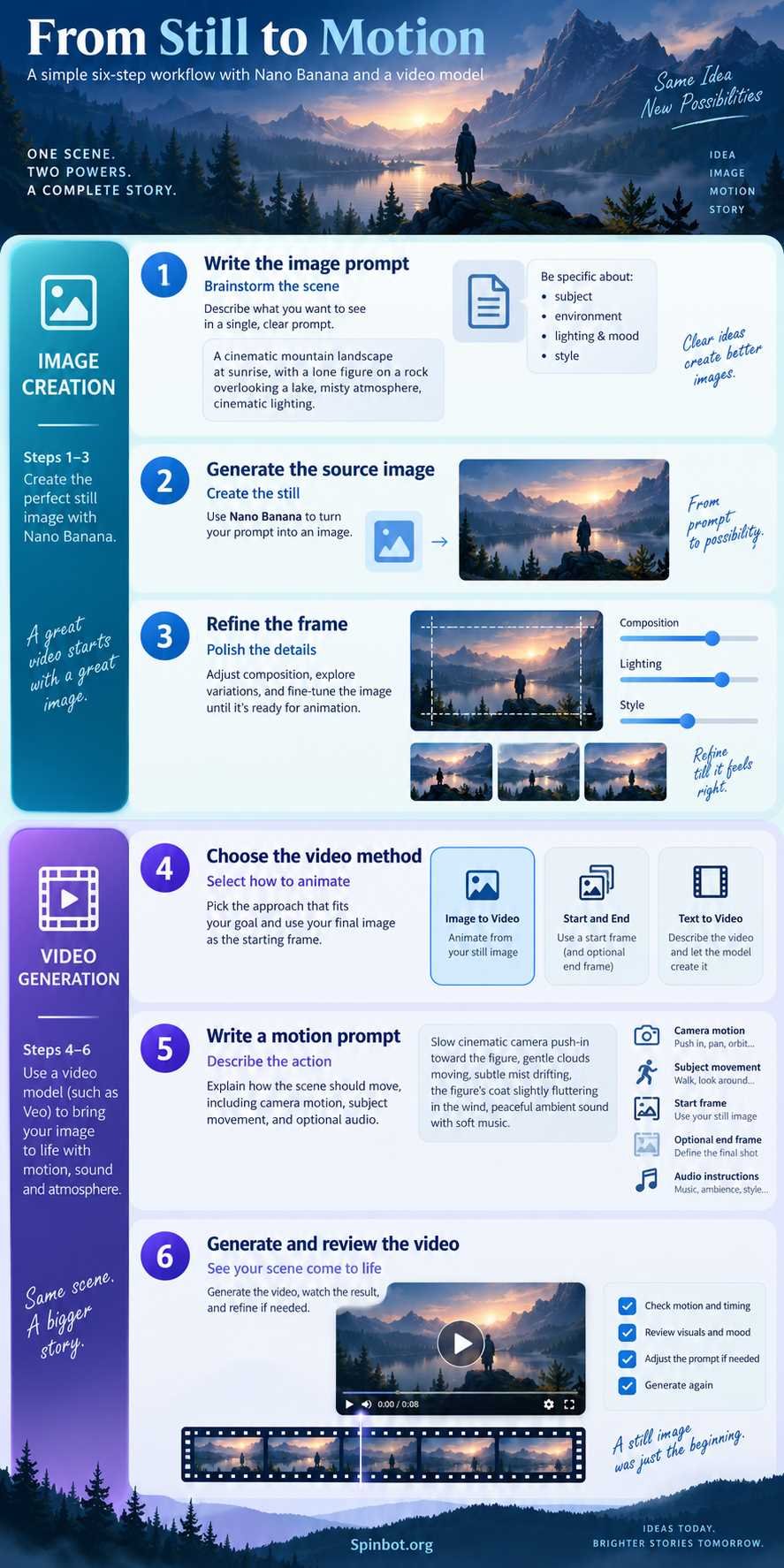
Here is a practical Nano Banana to Veo workflow.
1. Create your starting image
Begin with the frame you want viewers to see at the start of the video.
Instead of prompting:
A man in a city.
Give Nano Banana useful visual details:
A young man standing beside a small coffee shop on a rainy city street at dusk, warm light glowing through the windows, wet pavement reflecting streetlights, cinematic photography, eye-level camera, realistic proportions.
Your image prompt should mainly describe appearance and composition.
You do not need to describe several seconds of movement yet.
2. Fix the image before animating it
Look closely at the generated frame.
Check:
- face and hands
- product shape
- text
- clothing
- object placement
- background details
- camera angle
- lighting
- empty space around moving objects
If something is wrong in the still image, fix it before creating the video.
Trying to repair a bad starting frame through a motion prompt usually makes the job harder.
3. Match the image to your final video format
Decide where the video will appear.
A wide landscape format is useful for websites, presentations, and many YouTube videos.
A vertical format makes more sense for Shorts, Reels, TikTok-style content, and other mobile-first placements.
Veo 3.1 supports both 16:9 landscape and 9:16 portrait generation.
Creating the source image in a similar composition reduces the need for awkward cropping later.
4. Add the image to your video workflow
You can now use the source frame with Veo.
Google’s Gemini API documentation shows Nano Banana 2 generating an image and Veo 3.1 receiving that image as the starting frame for the video.
You don’t have to use code, though.
Google Flow also supports video creation with frames and other visual references. Its current workflow lets you choose a video model and add ingredients or starting and ending frames.
5. Write a motion prompt
This is where many image-to-video prompts go wrong.
You don’t need to describe everything already visible in the image. The video model can see the frame.
Focus on change.
Describe:
- what the subject does
- how fast it moves
- what the camera does
- what moves in the background
- how the environment reacts
- what sound or dialogue is needed
For example:
The man slowly turns toward the coffee shop entrance and begins walking forward. The camera gently tracks beside him. Light rain continues falling, reflections shimmer on the pavement, and passing cars remain softly blurred in the background. Natural city ambience and quiet rainfall.
That gives the model a clearer job than repeating the visual description of the original image.
6. Review motion, not just image quality
Once the clip is generated, watch for:
- sudden facial changes
- warped objects
- unnatural walking
- disappearing background items
- excessive camera movement
- unexpected zooming
- flickering
- changes in clothing or product design
Then adjust one or two things at a time.
If the camera moves too much, for example, don’t rewrite the whole prompt. Try adding:
Static camera. Only the subject moves.
Small corrections make it easier to understand what changed.
How to Write a Good Image-to-Video AI Prompt
A useful image to video AI prompt usually contains four parts:
Subject movement + camera movement + environmental movement + sound
You don’t always need all four.
Imagine you have generated an image of a perfume bottle on a marble table.
A weak prompt would be:
Make this cinematic and beautiful.
A more useful prompt would be:
The camera slowly circles clockwise around the perfume bottle while soft morning light moves across the glass. A thin curtain gently shifts in the background. Keep the bottle shape, label placement, and marble surface unchanged. Quiet room ambience.
Notice what the second prompt does.
It tells the model what is allowed to move and what should stay stable.
That matters when animating products, characters, logos, buildings, or other subjects where visual consistency is important.
Nano Banana and Veo Prompt Examples
Here are several starting points you can adapt.
Product animation
Create the product image in Nano Banana first.
Then use:
Slow camera push toward the product. Condensation droplets gradually form on the surface while soft light sweeps from left to right. Keep the package design, proportions, colors, and label unchanged. Clean studio atmosphere.
Portrait animation
The subject gives a small natural smile and turns slightly toward the window. Hair moves gently in a light breeze. Keep facial features and clothing consistent. The camera remains almost still with subtle handheld movement.
Avoid requesting five different actions in a short portrait clip. Smaller movements usually give the model a simpler scene to solve.
Landscape animation
Clouds move slowly over the mountain ridge as morning mist drifts through the valley. Tree branches sway gently. The camera performs a slow forward drone movement. Natural wind and distant birds.
Social media food clip
Steam rises naturally from the bowl while the camera slowly moves closer. A hand enters from the right and gently lifts the spoon. Keep the bowl, table setting, food appearance, and background unchanged. Soft restaurant ambience.
These aren’t magic formulas. They simply separate visual setup from motion instructions, which makes image-to-video prompting easier to control.
Using Start and End Frames With Veo 3.1
A single starting image works well when you know where a scene begins but are flexible about where it finishes.
Sometimes you need more control.
Veo 3.1 supports generation using both a first frame and a last frame. Google describes this as interpolation: the model generates the motion needed to move from the opening image to the ending image.
This creates an interesting Nano Banana workflow.
You could generate:
- a starting frame with a closed gift box
- an ending frame with the box open and the product visible
Then give both frames to Veo.
Your prompt might say:
The ribbon slowly unties and the lid rises naturally as the camera moves slightly closer. Transition smoothly from the first frame to the final product reveal.
This approach can be useful for product reveals, scene changes, before-and-after concepts, camera transitions, and simple visual storytelling.
Nano Banana can help design both key frames. Veo handles the motion between them.
Gemini Image to Video Without the Traditional Veo Workflow
Not everyone needs the Nano Banana to Veo workflow.
If you’re working inside Gemini Apps, the simpler route may be to create or upload an image and use Gemini’s current video-generation interface.
Google’s September 2026 documentation says Gemini Apps use Gemini Omni for video generation. Omni supports text and image inputs as well as conversational editing, so you can continue requesting changes after the first result.
That means a basic Gemini image to video workflow could look like this:
- Generate the still image.
- Open video creation.
- Add the image.
- Describe the movement.
- Generate the video.
- Ask Gemini to revise it if needed.
For beginners, this conversational process may be easier than working with an API.
Common Nano Banana Image Animation Problems
Even good AI video models can struggle when the request contains too much change.
The character’s face changes
Keep facial movement modest and avoid combining major head turns, camera rotations, fast walking, and complex background motion in one short shot.
Products become distorted
Tell the model which features must remain unchanged.
For example:
Preserve the exact bottle shape, cap, label position, and colors.
The camera moves too aggressively
Use specific camera language:
Locked camera.
Slow push-in.
Gentle pan to the left.
Static tripod shot.
Clear camera instructions are better than simply asking for something “cinematic.”
The animation feels random
The prompt may contain appearance details but no clear action.
Remember the division:
Nano Banana prompt = what the frame looks like.
Video prompt = what changes over time.
Too many things happen at once
An eight-second shot doesn’t need an entire story.
Google’s current Veo 3.1 API documentation lists short video durations, including 4, 6, and 8 seconds depending on the configuration, so think in terms of a single shot or moment, not a full scene sequence.
Gemini, Flow, or Gemini API: Which Workflow Should You Use?
| Workflow | Best for | Main advantage |
|---|---|---|
| Gemini Apps + Omni | Beginners and quick creation | Conversational generation and editing |
| Google Flow | Creators and visual storytelling | Frames, ingredients, and filmmaking controls |
| Gemini API + Veo | Developers and automated workflows | Programmatic image-to-video control |
There is no single best option for everyone.
Use Gemini Apps when simplicity matters most.
Use Flow when you want to build scenes visually and work with frames or creative references.
Use the Gemini API with Veo 3.1 when you’re developing an app, automating content production, or need programmatic control.
The Simplest Workflow for Most Creators
Nano Banana video generation makes the most sense when you stop thinking of Nano Banana as the video generator.
Use it as your visual director.
Create the exact frame you want. Fix the composition, character, product, lighting, and background before anything moves.
Then let the right video model handle motion.
For a straightforward workflow, create your source image with Nano Banana, animate it through Gemini Apps or Flow, and describe only the movement that matters. When you need more precise first-frame, last-frame, reference-image, or API control, Veo 3.1 gives you a more structured image-to-video workflow.
The basic formula is simple:
Design the scene with Nano Banana. Describe the motion clearly. Let the video model animate it.
Once you separate those two jobs, Nano Banana image animation becomes much easier to plan, prompt, and refine.

Covers AI writing tools, large language models, prompt engineering, AI detection, and practical AI writing workflows for Spinbot.ORG.